.png?width=250&height=45&name=Full_logo_dark%20(1).png)
Adding someone to your account
Want a colleague working alongside you in Dataships? Adding them takes about a minute. You'll pop in their details, they'll get an invite to join your account, and they'll show up in your team list straight away.
If you need a refresher on where Team Management lives or what the list shows, see Managing your team.
Step by step
- From the team list, click Add User in the top right.
- Fill in the details on the Add form:
- Email Address — the email they'll use to log in.
- First Name
- Last Name
- Click Add.
All three fields are required, so make sure none are left blank before you click Add.
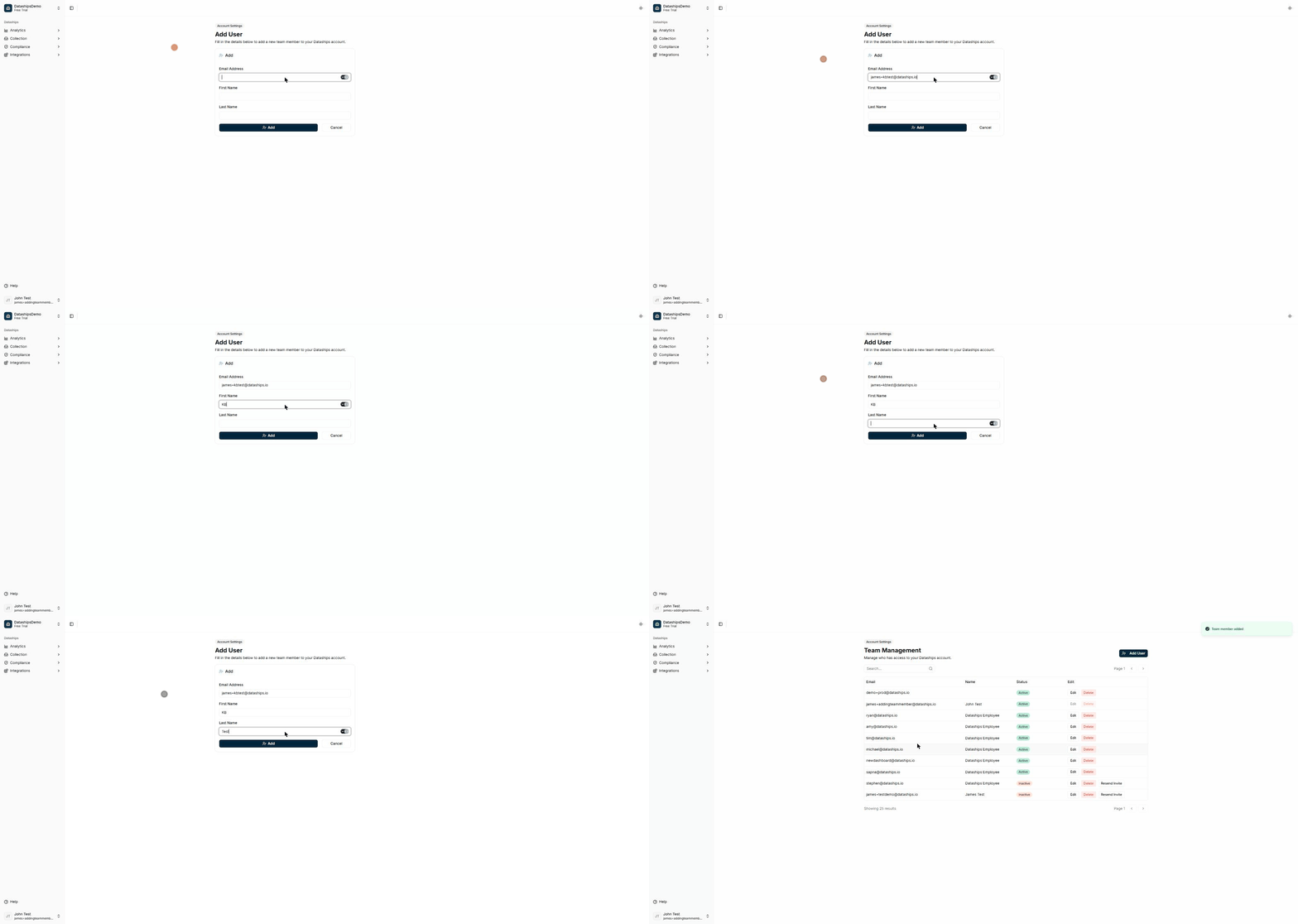
Adding a team member: fill in the three fields, then click Add.
What happens next
Once you click Add, you'll see a Team member added confirmation and you'll be taken back to the team list. Your new team member will appear there right away.
They'll start out as Inactive — that just means they haven't activated their access yet. As soon as they accept their invite and log in, their status flips to Active. No action needed from you in the meantime.
A note on access levels
There's no role or permission choice on this form — everyone you add gets the same standard account access. If you need something different for a particular person, reach out to your account manager.
Common issues
- "… is required" message — Email Address, First Name, and Last Name all have to be filled in. If any are missing, you'll be prompted to complete them before the member can be added.
- They're still showing as Inactive — that's expected until they accept the invite and log in. If they never got it or it's gone stale, you can send a fresh one with Resend Invite — see Editing or removing a team member.
Need to change or remove someone?
Once a person is on your list, you can update their name or email, resend their invite, or remove them entirely. All of that is covered in Editing or removing a team member.