.png?width=250&height=45&name=Full_logo_dark%20(1).png)
This article walks you through two things: connecting your Attentive account to Dataships via OAuth (one click, no credentials to type), and providing a Sign-up Method ID so Dataships knows which source to tag contacts with. Once both steps are complete, Dataships syncs consented subscribers to Attentive automatically.
Step 1: Connect via OAuth
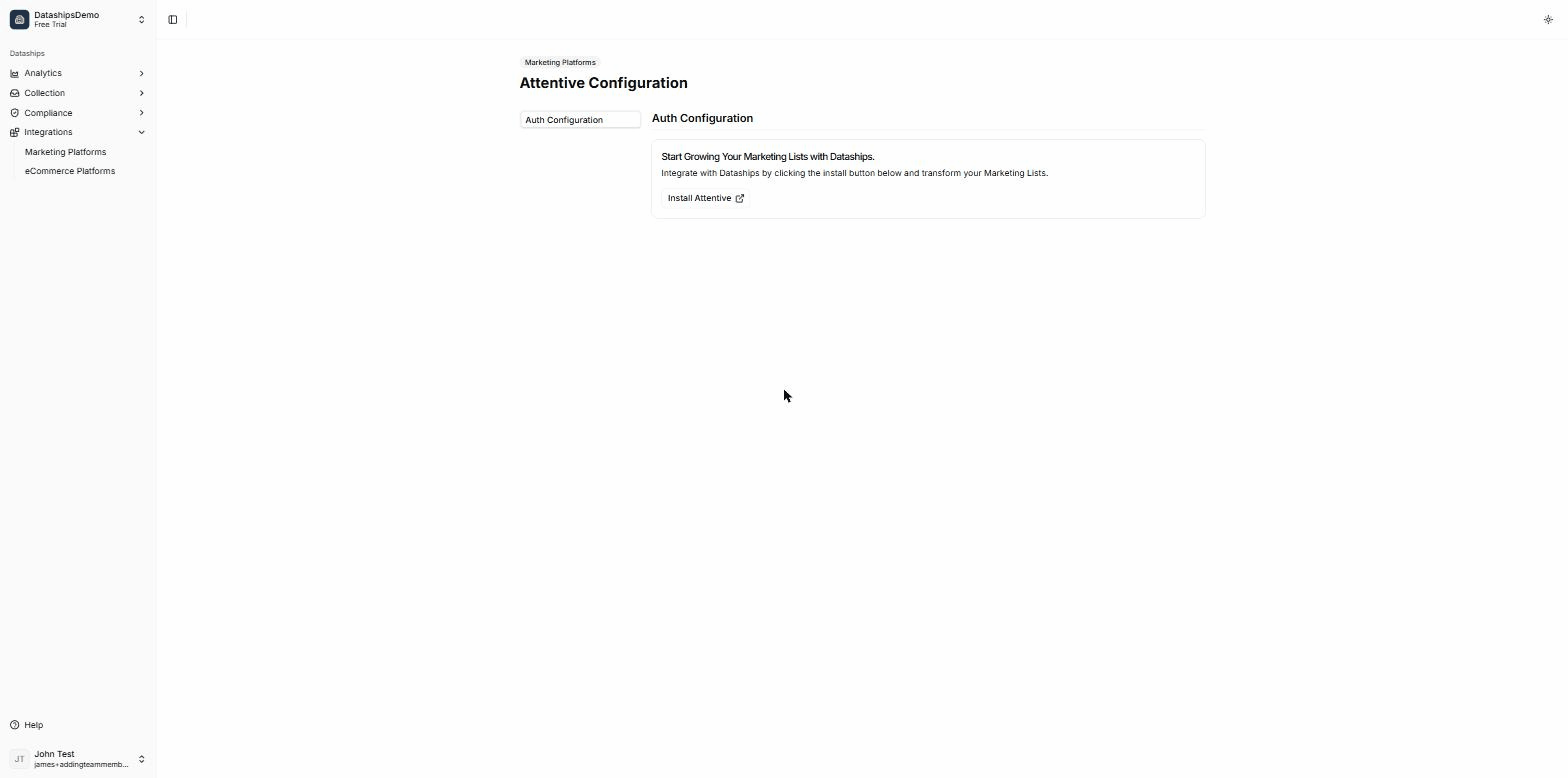
Go to Integrations → Marketing Platforms → Attentive. You will see the "Install Attentive" button under Auth Configuration.
- Click Install Attentive. You will be redirected to Attentive's authorisation page.
- Click Allow to grant Dataships access.
- You will be returned to Dataships automatically. The connection is now active.
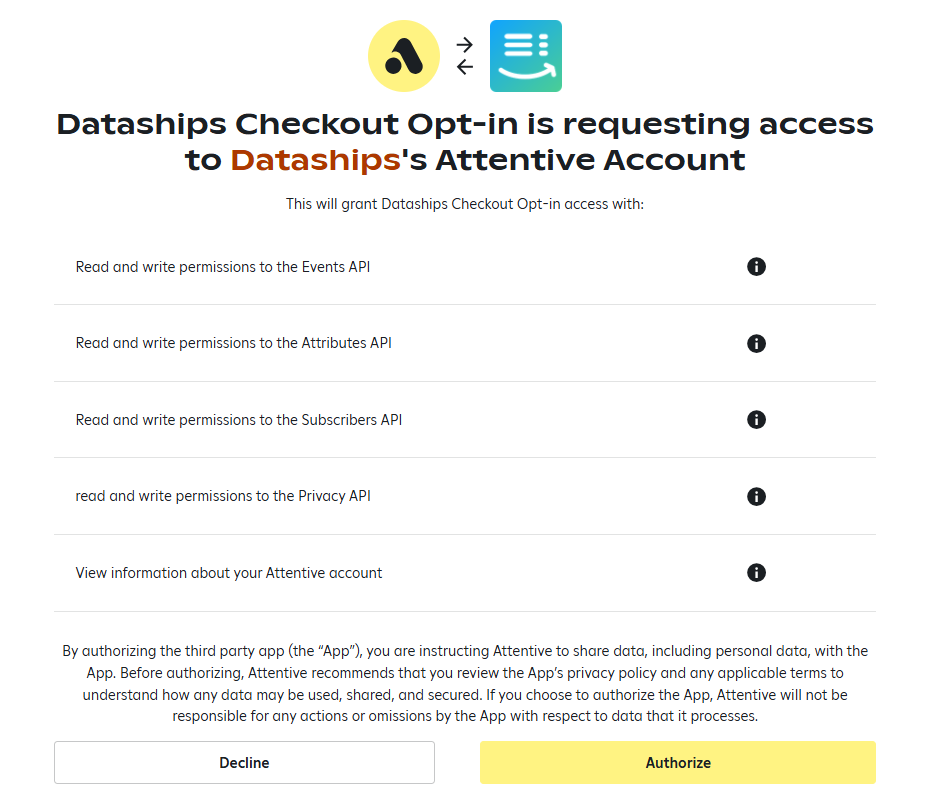
On Attentive's authorisation page, review the permissions Dataships is requesting and click Authorize to grant access.
If you see an error after authorising
- If you clicked Deny on Attentive's page, you will see: "Authorization was declined. Please authorize access by clicking 'Allow' to enable integration." Return to the authentication screen and click Install Attentive again, then click Allow.
- For any other failure, you will see: "OAuth failed, please try again." Click Install Attentive to retry.
Step 2: Enter your Sign-up Method ID
After connecting, you will be taken to the Configuration screen. In the General section, you will see the Attentive Sign-up Source ID form. This is the only manual configuration step — it tells Dataships which Attentive sign-up source to tag contacts with when syncing.
To find your Sign-up Method ID in Attentive:
- Navigate to your Attentive account.
- Select Sign-up Units in the side menu.
- Scroll down to the bottom of the page to view your Sign-up Methods.
- Copy the Sign-up Method ID for the Sign-up Method you want to use.
- Return to this screen and paste the Sign-up Method ID into the field below.
- Click Save.
The field is labelled Attentive Sign-up Method ID. The helper text reads: "The Sign-up Method ID is the unique identifier for the Sign-up Method you want to use."
When saved successfully, you will see a confirmation: "Attentive integration updated."
Step 3: Activate email sync (if needed)
If the Email Configuration section is visible below the General section, your email channel is not yet active.
- If the button reads Onboard with Email: click it and confirm in the modal. This begins onboarding for your email channel.
- If the button reads Go-live with Email: click it and confirm in the modal. This activates your Attentive email integration.
If neither button appears, your email channel is already active — no action needed.
SMS
Your SMS channel status is visible on the Attentive integration card, but SMS configuration is handled separately and is not part of this screen. Contact your account manager or Customer Success team to set up SMS.
During onboarding
If you are going through the Dataships onboarding flow, you will see a progress bar at the bottom of each screen.
- Authentication screen: shows "2/6. By clicking next you will be brought to the next step of onboarding" — click Next once connected.
- Configuration screen: shows "3/6. By clicking next you will be brought to the next step of onboarding" — click Next after saving your Sign-up Method ID.
FAQ
Where do I find my Sign-up Method ID in Attentive?
In Attentive, go to Sign-up Units in the side menu, then scroll to the bottom of the page to the Sign-up Methods section. Your Sign-up Method IDs are listed there. Copy the one you want to use and paste it into the Dataships configuration screen.
I declined the OAuth — how do I reconnect?
Go back to Integrations → Marketing Platforms → Attentive → Authentication. Click Install Attentive again and click Allow on Attentive's authorisation page. The previous declined authorisation does not block you from reconnecting.
Do I need to set up lists like in Klaviyo?
No. Attentive does not use subscriber lists the same way Klaviyo does. The only configuration you need is the Sign-up Method ID — Dataships handles contact syncing from there.