.png?width=250&height=45&name=Full_logo_dark%20(1).png)
Connecting Ometria to Dataships lets every consent collected at your Shopify checkout sync automatically to your Ometria account — so your marketable contacts stay up to date without any manual work. This article covers how to connect using your Ometria API key, activate email syncing, and uninstall the integration if needed.
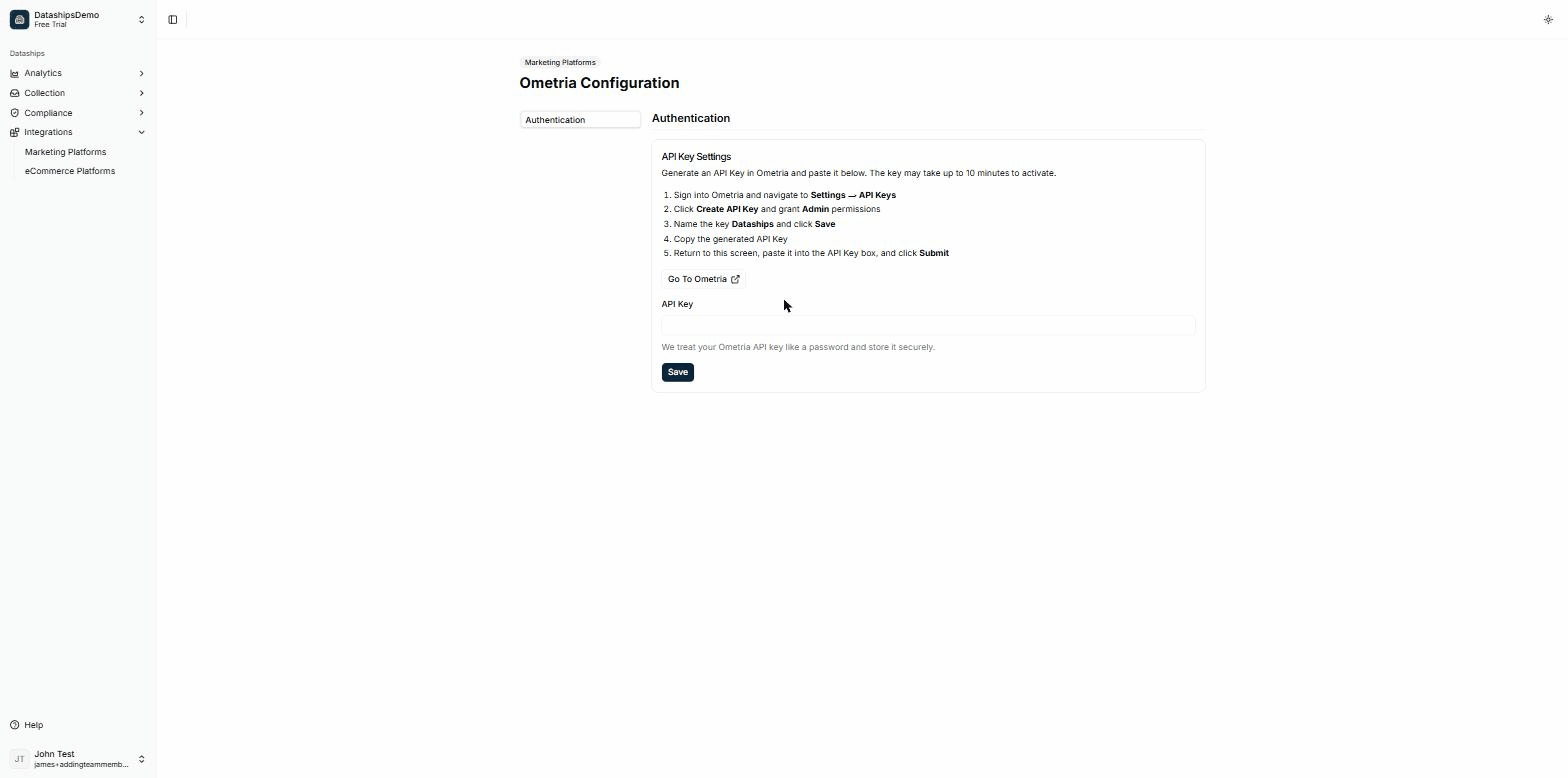
Finding the Ometria integration
Go to Integrations → Marketing Platforms. Find the Ometria card and click Install. This takes you to the Ometria Configuration screen where you'll connect using an API key.
If Ometria is already installed, click Configure on the card, then select Authentication from the sidebar to update your key.
Step 1: Get your Ometria API key
You'll need to create a dedicated API key for Dataships inside your Ometria account. Follow the steps shown on the Authentication screen:
- Click the Go To Ometria link to open your Ometria account in a new tab.
- Navigate to Settings → API Keys.
- Click Create API Key and grant Admin permissions.
- Name the key Dataships and click Save.
- Copy the generated API key.
Important: Your new API key may take up to 10 minutes to activate in Ometria. If Dataships shows an error immediately after pasting the key, wait a few minutes and try again.
Step 2: Enter the key in Dataships and save
Return to the Dataships Authentication screen and paste your key:
- Paste the copied key into the API Key field.
- Click Save.
Dataships stores your API key securely — it's treated like a password and is masked after saving. You'll see a confirmation message once the integration is saved successfully.
Step 3: Activate email syncing
After saving your API key, go to the Configuration screen (Integrations → Marketing Platforms → Ometria → Configure) to activate email consent syncing.
What you see here depends on where you are in setup:
If you see "Onboard with Email"
Your Ometria connection has been detected but email syncing hasn't been activated yet.
- Click Onboard with Email.
- In the modal, click Confirm to begin onboarding with email.
The screen will update once provisioning is complete.
If you see "Go-live with Email"
Provisioning is done — you just need to confirm go-live.
- Click Go-live with Email.
- In the modal, click Confirm to activate Ometria email consent syncing.
During onboarding
If you're setting up Dataships for the first time, you'll see a progress bar at the bottom of each screen:
- Authentication screen: shows "2/6. By clicking next you will be brought to the next step of onboarding." Click Next after saving your API key to move to the Configuration screen.
- Configuration screen: shows "3/6. By clicking next you will be brought to the next step of onboarding." Click Next once you've activated email syncing to continue to the next onboarding step.
Uninstalling Ometria
To remove the Ometria integration, go to Integrations → Marketing Platforms and click the trash icon on the Ometria card (tooltip: "Uninstall Ometria Integration").
A confirmation modal will appear. Click Uninstall to confirm, or Keep installed to cancel.
Note: Uninstalling stops Dataships from syncing any new contacts to Ometria. It does not remove existing contacts from your Ometria account. You can re-install at any time.
FAQ
Why isn't my API key working right away?
Ometria API keys can take up to 10 minutes to activate after creation. If you see an error immediately after saving, wait a few minutes and try clicking Save again. If the issue persists after 10 minutes, double-check that you copied the full key from Ometria.
What does "Admin" permissions mean when creating the API key?
Selecting Admin permissions gives Dataships the access it needs to sync contacts and consent data to your Ometria account. Without Admin permissions, the integration won't be able to write subscriber data correctly.
What happens to my existing Ometria contacts if I uninstall?
Uninstalling only stops future syncing — Dataships won't remove or alter any contacts already in your Ometria account. All previously synced contacts remain exactly as they were. To resume syncing, simply re-install the integration and re-enter your API key.
Can I update my API key later?
Yes. Go to Integrations → Marketing Platforms → Ometria → Configure → Authentication, paste your new key into the API Key field, and click Save. The update takes effect immediately.