.png?width=250&height=45&name=Full_logo_dark%20(1).png)
Overview
This guide explains how to connect your Releva account to Dataships. Once connected, Dataships automatically syncs consented email subscribers from your checkout into Releva, so your subscriber list stays current without manual exports or imports.
Releva does not use a one-click sign-in. Instead, you copy the Secret Key from your Releva account and paste it into the Dataships Control Panel. Releva has no lists, so there are no lists to create or select, and email syncing switches on as soon as your key is saved.
Setup has three steps:
- Copy your Secret Key from Releva
- Save your Secret Key in Dataships
- Send your Releva campaigns to opted-in shoppers only
Good to know: In Releva, opt-in means subscribed shoppers and opt-out means unsubscribed shoppers.
Finding the Integration
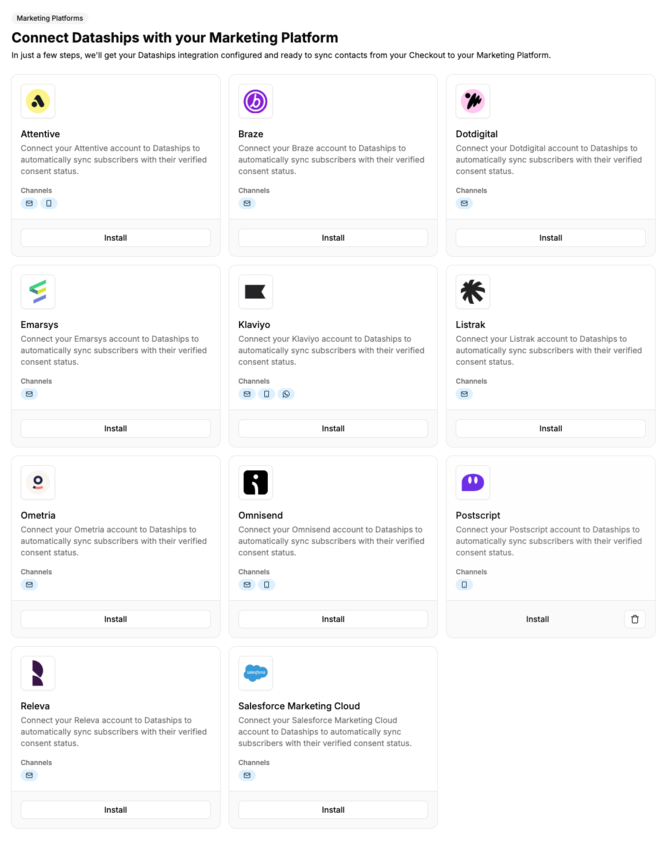
In the Dataships Control Panel, go to Integrations › Marketing Platforms in the left panel. Locate the Releva card and click Install to begin setup.
If Releva is already installed, click Configure and choose Authentication from the sidebar to update your key.
Step 1: Copy Your Secret Key from Releva
Releva provides one Secret Key for each shop. There is nothing to create, you only need to copy it.
- Sign in to Releva
- Open the Shop integration page
- Copy the Secret Key
Important: If you have more than one shop in Releva, copy the Secret Key for the shop you are connecting to Dataships.
Step 2: Save Your Secret Key in Dataships
Return to the Dataships Control Panel.
- Go to Integrations › Marketing Platforms › Releva › Install
- Paste the key into the Secret Key field
- Click Save
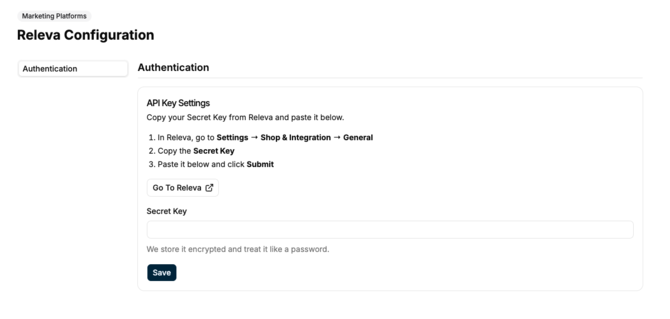
Dataships stores your key encrypted and treats it like a password. When you save, Dataships checks the key with Releva, connects your account and switches on email syncing. There is nothing else to configure in Dataships.
Step 3: Send Campaigns to Opted-In Shoppers Only
To make sure your Releva campaigns only reach shoppers whose consent Dataships manages, set the audience to opt-in only when you build a campaign in Releva. Shoppers who opt out through Dataships are left out of this audience.
- In Releva, open the campaign you are building
- In the audience settings, choose opt-in only
- Save the campaign
Important: If the audience is not limited to opt-in, Releva can send your campaign to shoppers who have not consented through Dataships.
How Consent Is Synced
- Single opt-in: shoppers are subscribed in Releva straight away with the Marketing subscription category.
- Double opt-in: not available for Releva. Use single opt-in for email.
- Opt-outs at checkout: when a shopper opts out through Dataships, Dataships removes the Marketing category from their Releva profile. Any other subscription categories you use in Releva are kept. If Marketing is their only category, the shopper is unsubscribed in Releva.
- Opt-outs in Releva: when a shopper unsubscribes inside Releva, for example through an unsubscribe link, they are unsubscribed from all your Releva marketing. Releva does not notify Dataships, so their Dataships consent record is updated the next time they go through your checkout.
- Unsubscribe links: Releva adds the unsubscribe links to your emails.
Important: Releva stores one subscription status for each shopper profile, not one for each channel. A shopper who is subscribed in Releva can receive marketing on any channel you use in Releva, such as SMS or WhatsApp. Dataships only syncs email consent to Releva.
Viewing Your Subscribers in Releva
To check that subscribers are arriving:
- Sign in to Releva
- Open your profiles and search for a shopper's email address
- Check the subscription status section shows the shopper as subscribed, with the Marketing category
New subscribers appear as they consent at checkout, so it is normal to see no new subscribers immediately after setup.
Uninstalling the Integration
To remove Releva, go to Integrations › Marketing Platforms, click the trash icon on the Releva card, and confirm in the modal.
Uninstalling stops Dataships from syncing any new subscribers to Releva. It does not remove or alter existing profiles in your Releva account.
Frequently Asked Questions
Why do I need a Secret Key instead of just clicking connect?
Releva does not offer a one-click authorisation screen. Pasting your Secret Key into Dataships achieves the same result.
Where do I find my Secret Key?
In Releva, open the Shop integration page. The Secret Key is shown there.
Do I need to create lists in Releva?
No. Releva has no lists. Dataships uses Releva's default Marketing subscription category instead.
Can I use double opt-in with Releva?
No. Releva supports single opt-in only through Dataships.
Why does a shopper who unsubscribed in Releva still show as subscribed in Dataships?
Releva does not tell Dataships when a shopper unsubscribes inside Releva. Dataships updates their consent record the next time they go through your checkout. Releva always has the shopper's latest status, and an unsubscribed shopper will not receive your Releva campaigns.
Will my other Releva subscription categories be affected?
No. Dataships only adds or removes the Marketing category. Your other categories stay on the shopper's profile.
Can I segment on Dataships consent properties in Releva?
Not at the moment. Dataships consent properties are not currently kept on Releva profiles.
Does Dataships sync SMS or WhatsApp consent to Releva?
No. Dataships syncs email consent to Releva. Keep in mind that Releva applies a shopper's subscription to every channel you use in Releva.
Do Releva quiet hours affect Dataships?
No. Quiet hours only control when Releva sends marketing messages. Dataships keeps syncing subscribers as normal.
What happens to my subscribers if I uninstall?
Uninstalling only stops future syncing. Dataships will not remove or change any profiles already in your Releva account.
Can I update my key later?
Yes. Go to Integrations › Marketing Platforms › Releva › Configure › Authentication, paste the Secret Key, and click Save.
If you see an authentication error after saving your key, check that you copied the full Secret Key and that it belongs to the shop you are connecting.