.png?width=250&height=45&name=Full_logo_dark%20(1).png)
Your Dataships checkout widget automatically shows each shopper the right consent text based on their location — but Klaviyo embedded forms work differently. When you add a signup form to your site, Klaviyo doesn't know where each visitor is from ahead of time, so you need to add the correct consent text yourself. The Forms Disclosure tool gives you the legally correct wording for each country and channel, ready to copy and paste.
Finding the Forms Disclosure screen
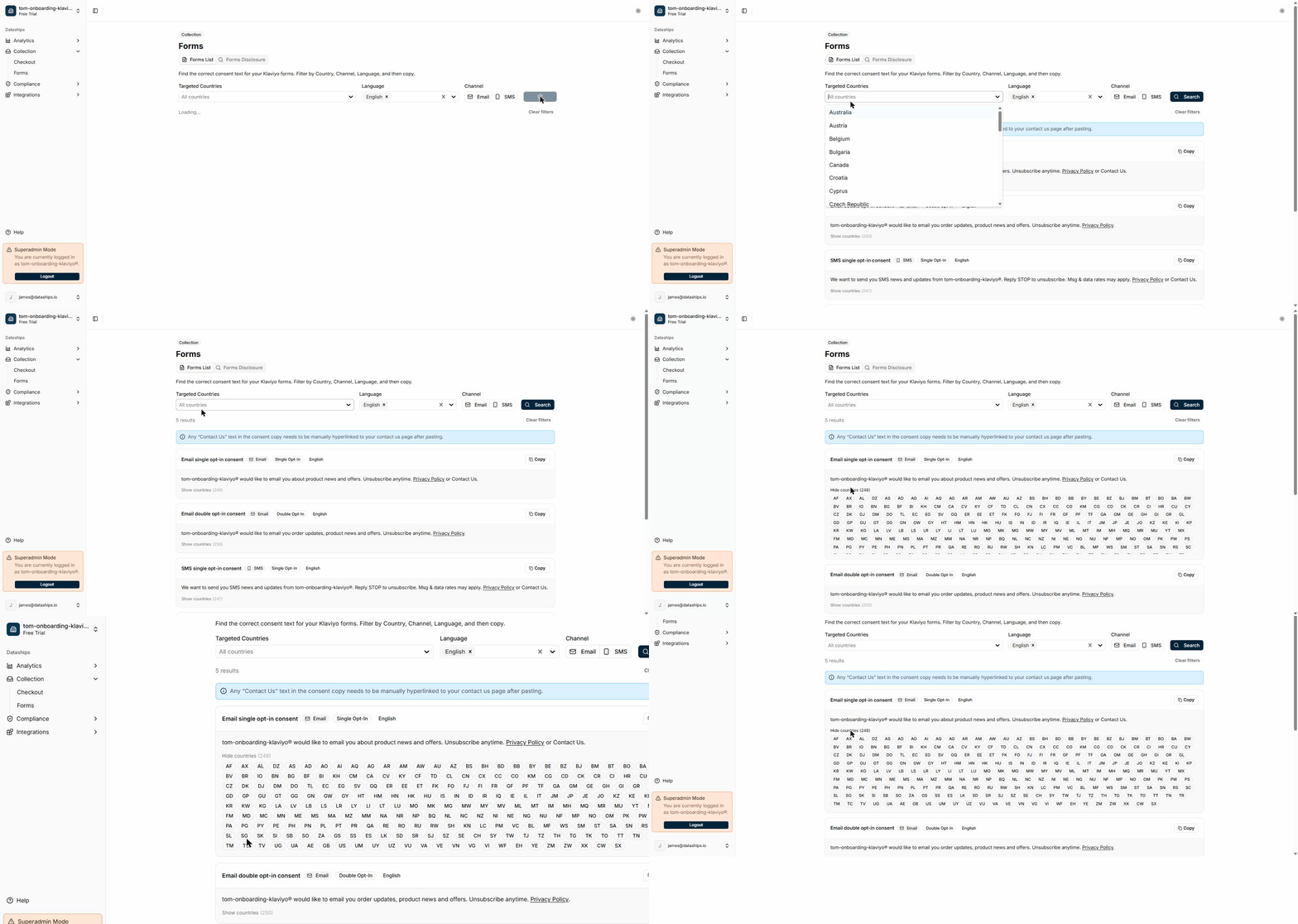
In your Dataships dashboard, go to Collection → Forms, then click the Forms Disclosure tab.
Note: the Forms section only appears if the Forms feature is enabled on your account. If you don't see it in the sidebar, contact your Dataships account contact to get it activated.
Using the filters
Use the filters at the top of the screen to narrow down the consent text to exactly what you need.
- Targeted Countries — Select the countries your form will be shown in. You can choose multiple. The tool covers 34 countries including the US, UK, EU member states, Canada, Australia, and New Zealand.
- Language — Choose the language for the consent text. English, French, and German are available.
- Channel — Toggle between Email and SMS, or leave both unselected to see results for both channels.
Once you've set your filters, click Search. The tool will return the matching consent texts for your selection.
Reading the results
Each result card shows you everything you need to know about a particular consent text:
- Channel badge — Email or SMS, so you can see at a glance which channel it's for.
- Subscription type badge — Single Opt-In or Double Opt-In, indicating what's required in those countries.
- Language badge — The language the text is written in.
- Consent text — The full wording to use in your form, with any privacy policy or terms links already substituted in.
- Countries — A toggle showing exactly which countries this text applies to, so you know precisely where it's valid.
Copying the text
The copy button copies the text with HTML formatting, including linked privacy policy and terms URLs. Paste it directly into the relevant field in Klaviyo.
Hyperlinking your "Contact Us" text
A note at the top of the results reminds you: "Any 'Contact Us' text in the consent copy needs to be manually hyperlinked to your contact us page after pasting."
Some consent texts include the words Contact Us because the correct wording requires a link to your contact page, and Dataships can't know that URL automatically. After you copy and paste the text into Klaviyo, manually turn the Contact Us wording into a hyperlink pointing to your store's contact page.
Frequently asked questions
Which countries should I select?
Select the countries where your Klaviyo form will be displayed to shoppers. If your store ships internationally, it's worth generating consent text for each major market separately — the wording and opt-in requirements vary by jurisdiction. For example, the EU requires explicit opt-in language that's different from what's needed in the US.
What if I don't see my language?
Currently the tool supports English, French, and German. If you need consent text in another language, contact your Dataships account contact — the team can advise on the best approach for your market.
What's the difference between Single and Double Opt-In results?
Single Opt-In means the shopper is subscribed as soon as they submit the form. Double Opt-In means they receive a confirmation email and have to click a link to confirm before they're added to your list. Some countries or your Klaviyo list settings may require one or the other. The badge on each card tells you which type that consent text is written for — make sure it matches how your Klaviyo list is configured.