.png?width=250&height=45&name=Full_logo_dark%20(1).png)
Before Dataships can collect consent at your checkout, you need to turn off Shopify's built-in marketing opt-in. If both run at the same time, your customers see duplicate prompts — which is confusing and can create compliance issues. This takes about two minutes to fix in your Shopify Admin.
Finding the screen
In your Dataships dashboard, go to Integrations → eCommerce Platforms → Shopify → Configuration. The Disable Default Consent tab opens by default.
If you're working through the onboarding checklist, clicking the Step 5: Disable Default Consent button takes you straight here.
How to disable it
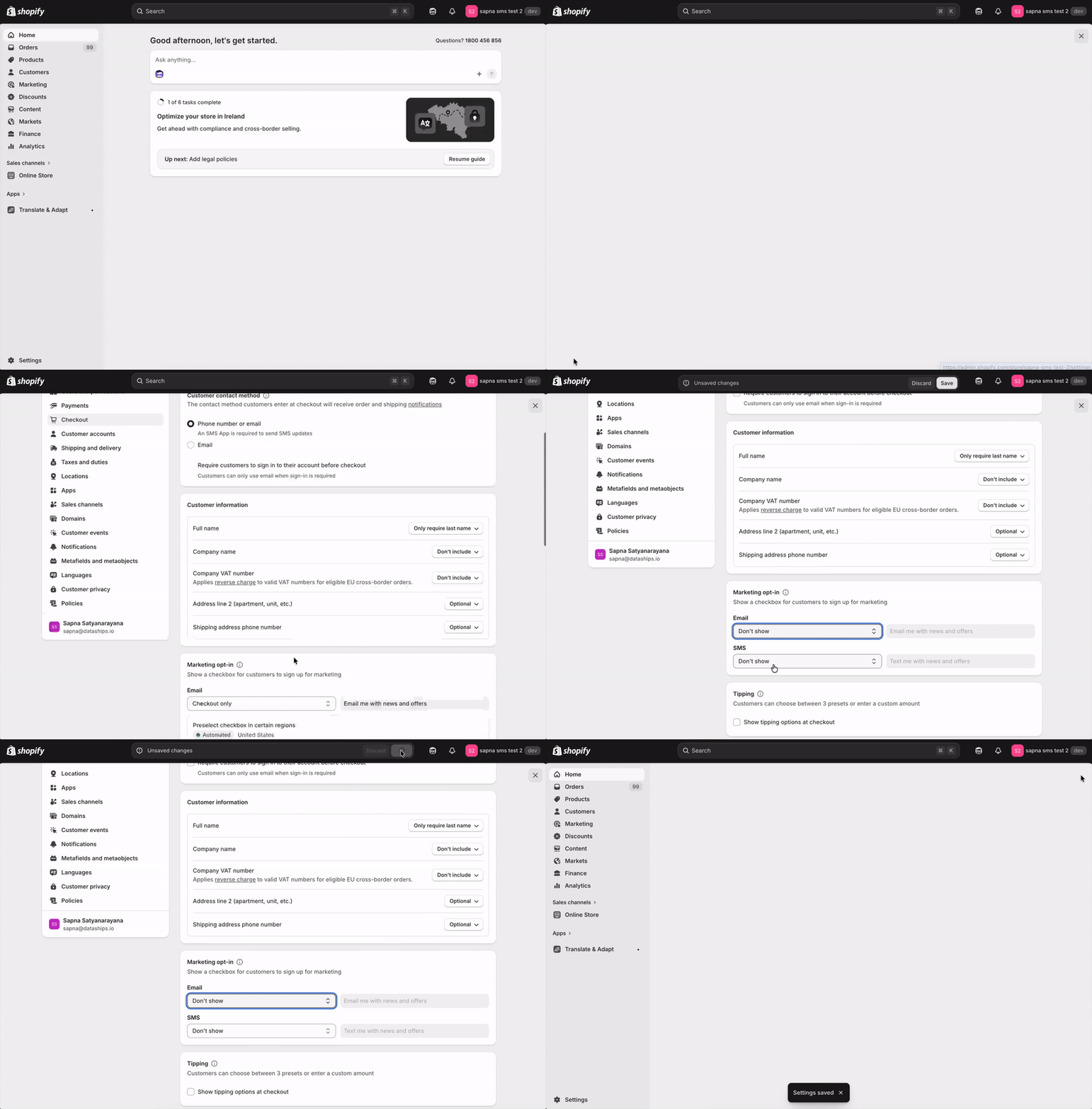
The page shows an instruction card titled Instructions for disabling default consent in Shopify. Follow these four steps:
- Click Shopify Admin Checkout Settings — this link opens your Shopify Admin in a new tab, pre-loaded to the right page. (You may see a brief spinner while the link loads.)
- In Shopify Admin, scroll down to Marketing opt-in.
- Find the Email dropdown and set it to Don't show.
- Click Save in Shopify, then return to your Dataships tab.
What to do next
Once you've saved the change in Shopify:
- If you're in the onboarding checklist: click Next to move to the final step. The bar at the bottom of the page reads "5/6 — By clicking next you will be brought to the next step of onboarding."
- If you're outside onboarding: head to the Installation tab (next to Disable Default Consent) to complete your setup.
For help with the Installation tab, see .
FAQ
How do I know if Shopify's checkbox is already disabled?
Go to your Shopify Admin Checkout Settings and check the Email dropdown under Marketing opt-in. If it's set to Don't show, you're already done — no further action needed. Dataships doesn't track this state, so the instruction page looks the same regardless.
Does Dataships confirm when this is done?
No. Dataships doesn't verify the change in Shopify or show a confirmation tick. Once you've saved in Shopify, you can treat the step as complete and move on.