.png?width=250&height=45&name=Full_logo_dark%20(1).png)
Your Privacy Center is a Dataships-hosted page where shoppers can read your privacy policy, understand their data rights, and manage their marketing consent. This article walks you through configuring how it looks, which languages it supports, and how to preview it before you share it.
Heads up: The Privacy Center is part of the Comply product and is only available on accounts with Comply access. If you don't see it in your sidebar, see the FAQ below.
Finding the Privacy Center settings
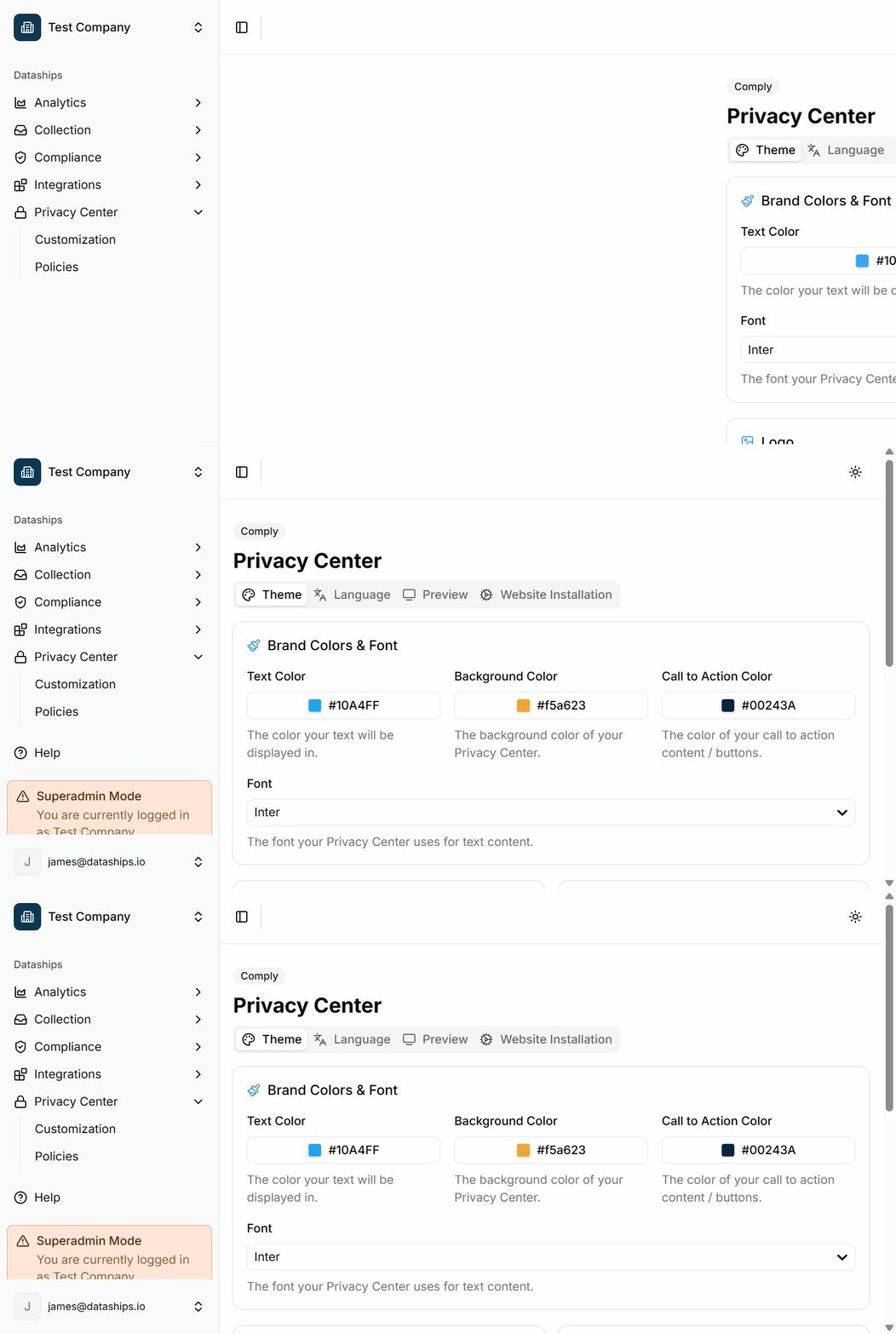
In your Dataships dashboard, click Privacy Center in the left sidebar. This opens the Customization area, which has three tabs: Theme, Language, and Preview.
Theme tab — branding your Privacy Center
The Theme tab is where you make the Privacy Center look like yours. There are four sections.
Brand colors and font
- Text color — The color used for all body text on the page. Use a color that reads clearly against your background.
- Background color — The main background color of the Privacy Center page.
- Call to action color — The color applied to buttons and interactive elements (for example, consent toggles and accept buttons). Pick something that stands out.
- Font — Choose any font from the Google Fonts library. Start typing a name to search.
Logo
Upload your brand logo to display it at the top of your Privacy Center. Accepted formats are PNG, JPEG, and JPG. Maximum file size is 100 KB.
Banner image
Optionally, upload a banner image that appears as a header across your Privacy Center. Accepted formats are PNG, JPEG, and JPG. Maximum file size is 1 MB.
Privacy email address
Enter the email address that should receive messages submitted through your Privacy Center — for example, data subject requests or consent queries. This address is also displayed within your privacy policy, so use a monitored inbox.
When you're done, click Save Theme Settings. You'll see a confirmation message once your changes are saved.
Language tab — enabling languages for your portal
If your customers shop in multiple languages, you can make your Privacy Center available in each of those languages. On the Language tab, check the box next to each language you want to enable, then click Save Active Languages.
Important: Dataships does not translate your policies. You are responsible for providing your privacy policy content in each language you enable. Enabling a language without uploading the corresponding policy content will result in an incomplete portal for those visitors.

Preview tab — see it before you publish
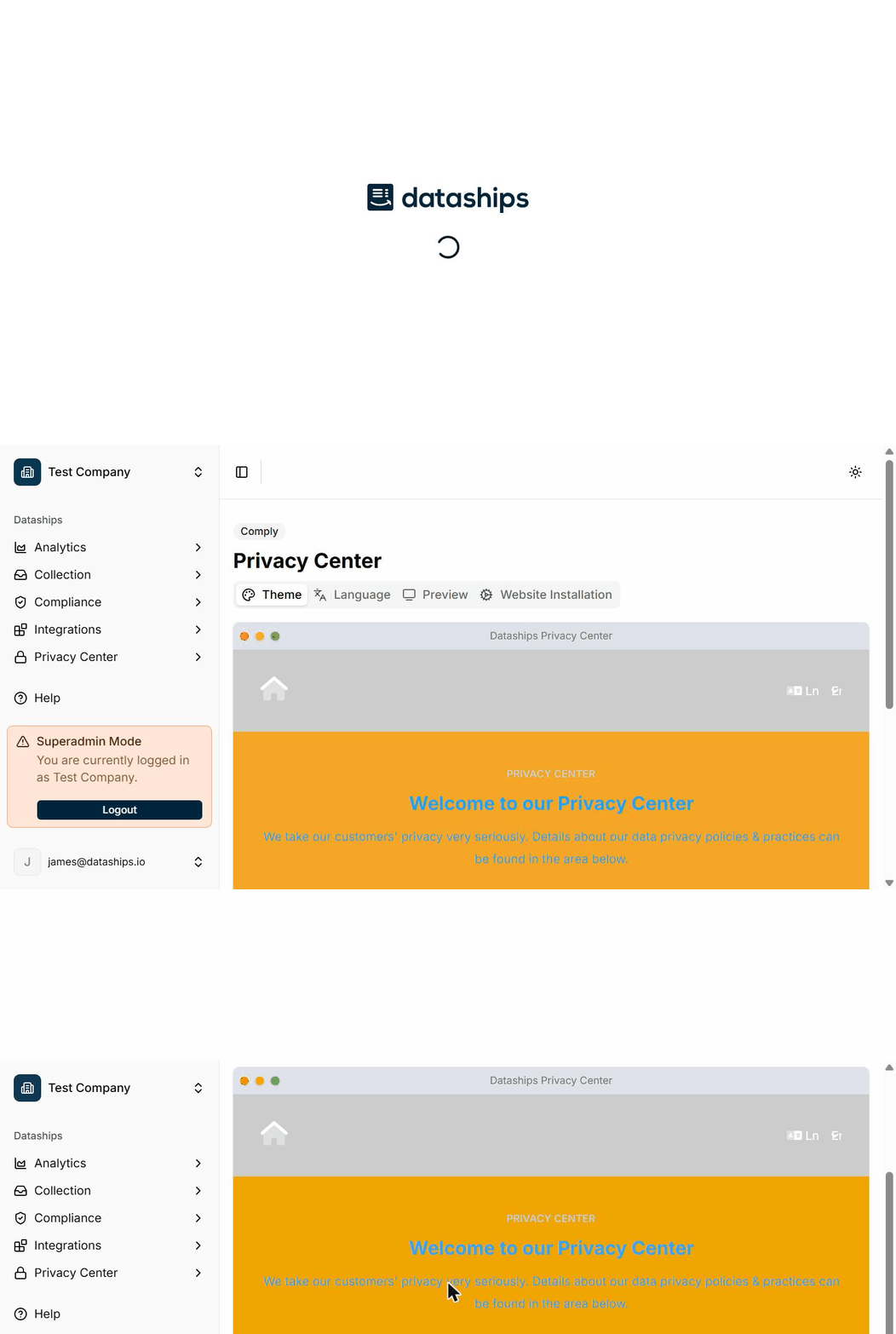
The Preview tab shows you a live rendering of your Privacy Center exactly as shoppers will see it. It's read-only — any changes you want to make go back in the Theme or Language tabs.
Use this to check that your colors, logo, and font look right before you add the Privacy Center to your website.
Frequently asked questions
I don't see Privacy Center in my sidebar — what does this mean?
The Privacy Center is part of the Comply product and requires specific account access. If it's not visible in your sidebar, your account may not include Comply. Reach out to your Dataships account contact or our support team to confirm what's included in your plan.
Can I add more languages later?
Yes. You can return to the Language tab at any time and enable or disable languages. Just remember to have your policy content ready in any new language you add.
What is the privacy email address used for?
It serves two purposes: it's displayed in your published privacy policy as the contact address for data inquiries, and it's the inbox that receives any messages or requests submitted by shoppers through your Privacy Center. Make sure it's a mailbox someone on your team checks regularly.