.png?width=250&height=45&name=Full_logo_dark%20(1).png)
Your Company Profile stores the two details Dataships uses to represent your business inside your consent policies and collection points: your company name and your website URL. Keeping these accurate means your shoppers always see the right information when they're asked for marketing consent.
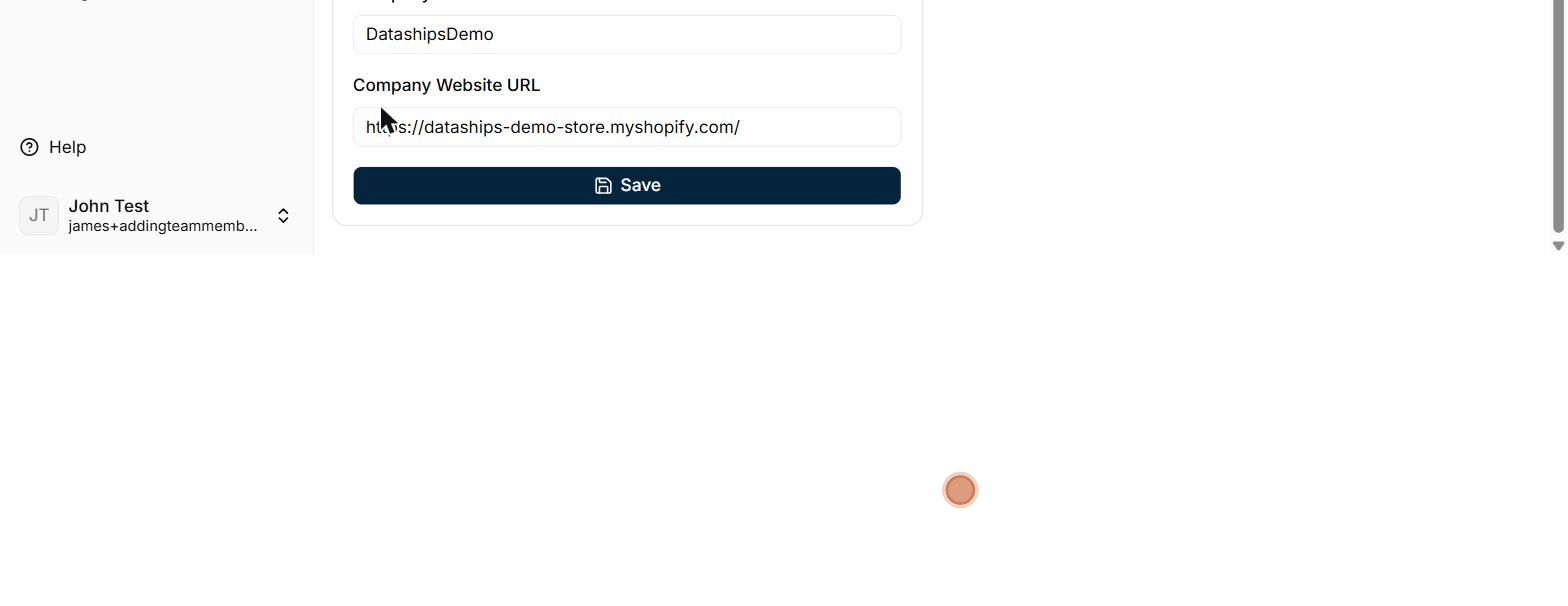
Finding the Company Profile screen
Click your user avatar in the bottom-left corner of the sidebar, then select Account. You'll land on the Company Profile page, marked with an Account Settings badge.
Updating your company name and website URL
- In the Update your Company Profile card, enter your Company Name.
- Enter your Company Website URL.
- Click Save.
You'll see a confirmation message once your changes are saved. Both fields are required — you won't be able to save if either is left blank.
Where these values appear
Your company name and website URL are pulled into the policies that Dataships displays across your collection points — for example, in the consent language shown to shoppers at checkout. Updating them here keeps everything consistent without any extra steps on your end.
Frequently asked questions
Can I change my email address or password?
Email address and password changes aren't available inside the Dataships app. If you need to update either, reach out to support@dataships.io and we'll get it sorted.
Where is my personal profile?
First name, last name, and company industry are associated with your account but aren't editable in the app at the moment. If you need to update any of these, contact support@dataships.io.