.png?width=250&height=45&name=Full_logo_dark%20(1).png)
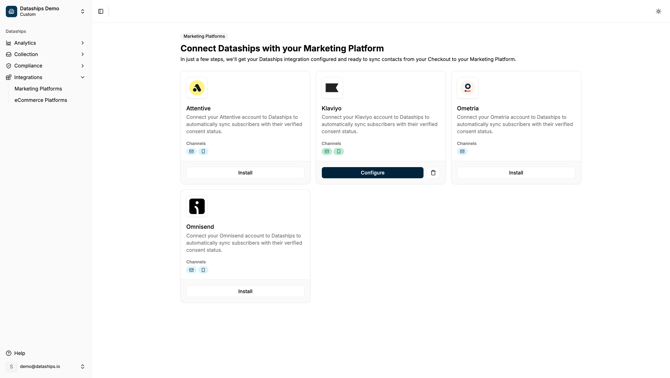
The Marketing Platforms screen is where you connect the email or SMS platform Dataships will sync new subscribers to. Once connected, Dataships automatically passes subscribers — along with their verified consent status — to your chosen platform after every checkout. You only need one platform connected to get started.
Finding the screen
In your Dataships dashboard, go to Integrations in the sidebar and select Marketing Platforms. The page is visible to all users — no special permissions are needed.
The platform list
The page shows a card for each platform Dataships supports. Every card displays:
- Platform name and logo — identifies the integration
- Channel badges — icons showing whether the platform supports Email, SMS, or both (see FAQ below)
- Action button — changes depending on whether you've connected that platform yet
Understanding connection status
The action button on each card tells you the current state of that integration:
- Install button (outline) — this platform is available on your account but not yet connected. Click it to start the setup.
- Configure button (solid) — this platform is already connected. Click it to review or update your settings.
If a card appears greyed out with a non-interactive Install button, that platform isn't available on your account. Hover over the button to see the reason. Contact support if you think this is incorrect.
Connecting a platform
Click Install on the platform card you want to connect. Dataships will either redirect you to authorise access via OAuth (for platforms like Klaviyo) or take you to an authentication screen where you'll enter an API key.
For full step-by-step instructions per platform, see:
- Connecting & configuring Klaviyo
- Connecting & configuring Attentive
- Connecting & configuring Omnisend
If a platform is already connected, click Configure to update your settings.
Removing a platform
To disconnect a platform, click the trash icon on its card. A confirmation modal will appear:
Uninstall [Platform Name] integration?
This will stop Dataships from syncing any contacts to [Platform Name] unless you re-install the integration.
Click Uninstall to confirm, or Keep installed to cancel. Once uninstalled, Dataships will stop syncing new subscribers to that platform. Your existing subscribers in the platform are not affected. You can reconnect at any time by clicking Install again.
FAQ
Can I connect more than one platform?
Yes. You can have multiple platforms connected at the same time — for example, Klaviyo for email and Attentive for SMS. Dataships will sync subscribers to each connected platform according to that platform's channel configuration.
What are the email and SMS badges on each card?
The badges show which marketing channels that platform supports and whether they're active on your account. A green badge means the channel is enabled and syncing. A grey badge means the channel is not available or not yet set up. You'll see more detail on the channel status inside the platform's configuration screen once connected.
I got an OAuth error — what do I do?
If you see the message "OAuth failed, please try again", return to the Marketing Platforms screen and click Install again to restart the authorisation flow.
If you see "Authorization was declined. Please authorize access by clicking 'Allow' to enable integration", it means you clicked Deny (or equivalent) during the OAuth prompt. Start the flow again and make sure to click Allow when your platform asks for permission.
If errors persist, contact Dataships support.