.png?width=250&height=45&name=Full_logo_dark%20(1).png)
Keeping your team list up to date
People change emails, invites get lost, and sometimes someone moves on. From your team list you can update a member's details, send a fresh invite, or remove them altogether. Here's how to do each.
New to Team Management? Start with Managing your team. Adding someone for the first time is covered in Adding a team member.
Editing a team member's details
Use this when someone's name or email needs updating.
- On the team list, click Edit next to the person you want to update.
- On the Edit form, the Email Address, First Name, and Last Name fields come pre-filled with their current details. Change whatever needs changing — all three are still required, so don't leave any blank.
- Click Update.
You'll see a Team member updated confirmation and you'll stay right on the page, so it's easy to double-check your changes.
This screen is just for name and email. There's no place to change someone's role or reset a password here — everyone keeps the same standard account access.
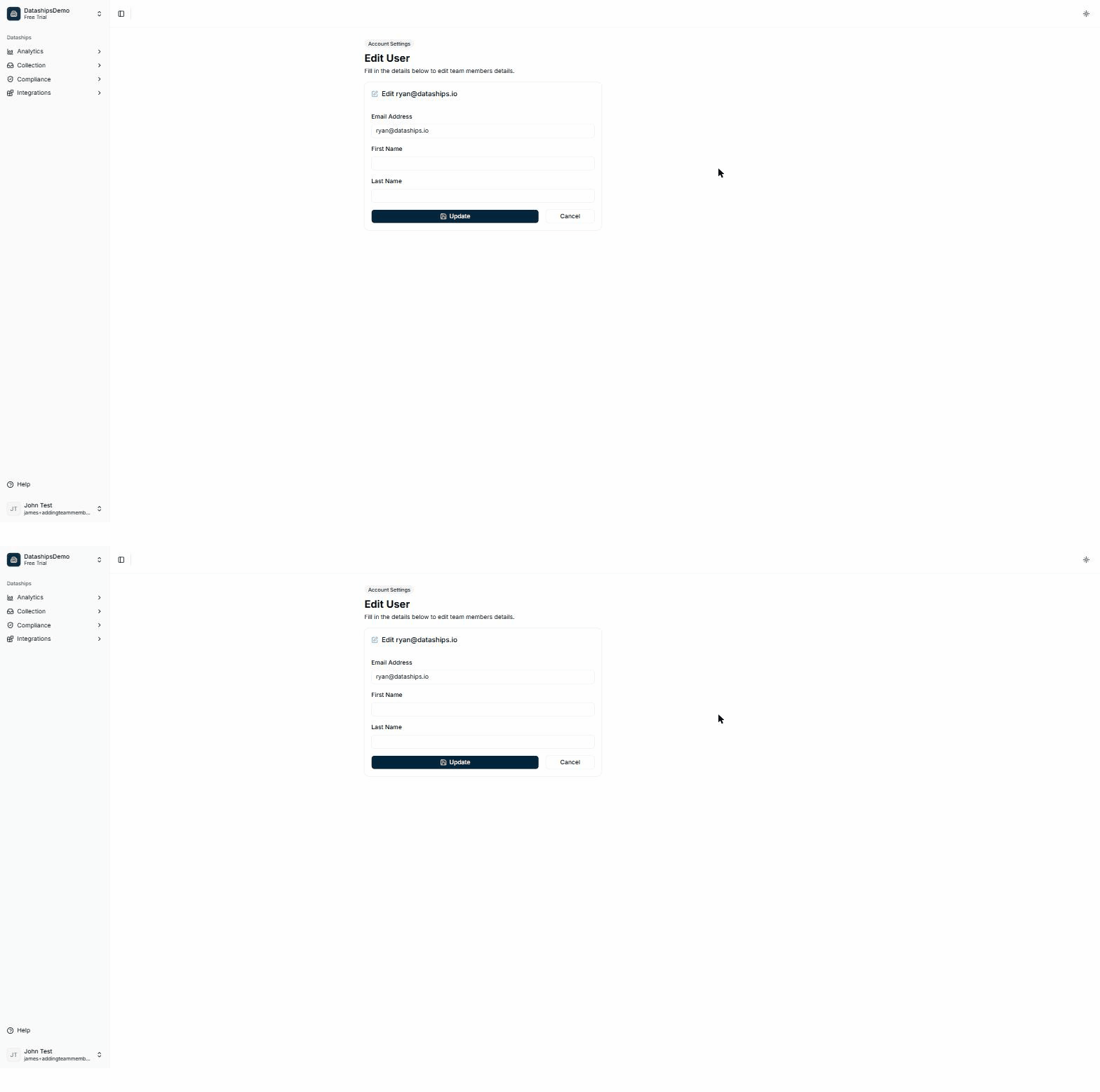
The Edit screen lets you update a member's email and name, then click Update.
Resending an invite
If someone is still showing as Inactive — meaning they haven't activated their access yet — you can send them a fresh invite.
- Find the person on the team list.
- Click Resend Invite next to their name.
You'll see an Invite resent confirmation. Resend Invite only appears for people who are still Inactive — once someone's Active, there's nothing left to resend.
Removing a team member
When someone no longer needs access, you can remove them. This is only available from the team list, not the Edit screen.
- On the team list, click Delete next to the person you want to remove.
- A confirmation dialog appears, titled Delete Team Member, asking: "Are you sure you want to delete [their email]? This action cannot be undone and they will lose access to the account."
- Click Delete to confirm, or Cancel to back out.
Once confirmed, you'll see a Team member removed confirmation and they'll drop off the list.
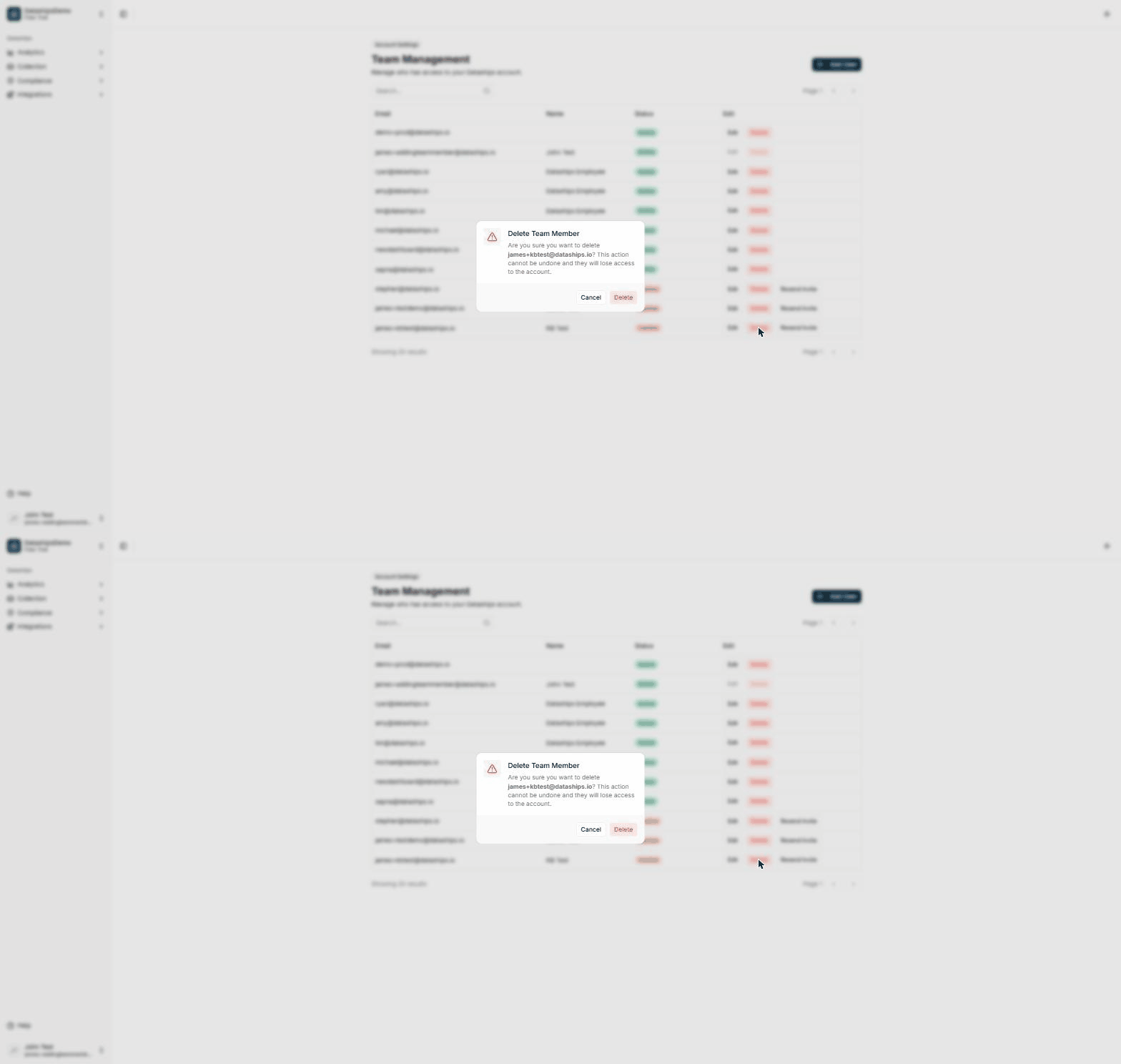
Deleting asks you to confirm first — it can't be undone.
Deleting is permanent. There's no undo, and the person loses access straight away — so make sure you've got the right name before you confirm.
One thing you can't do: action your own row
Edit, Resend Invite, and Delete all appear next to your own name, but they're switched off for you. You can't edit, resend an invite to, or delete yourself — those changes always have to be made by another team member.