.png?width=250&height=45&name=Full_logo_dark%20(1).png)
When you first open Dataships, you'll see a guided checklist that walks you through every setup step — from connecting your store to turning on consent collection at checkout. It lives in the sidebar under Setup and takes most merchants under 15 minutes to complete. Once all six steps are done, it disappears and you're live.
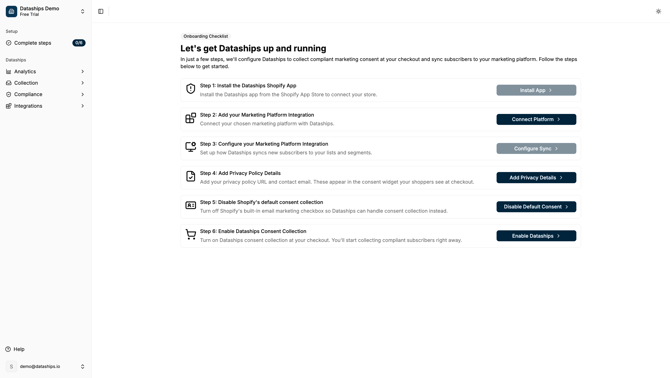
Finding the checklist
In the left sidebar, look for the Setup section. Under it, click Complete steps. You'll see a badge on the right showing your progress — for example, 2/6 — so you always know how far along you are.
The Setup section only appears while you have incomplete steps. Once all six are done, it goes away on its own. There's no way to get it back, but by that point you won't need it.
The six steps
Step 1: Install the Dataships Shopify App
This is the only step you can't complete from inside Dataships. Clicking Install App is disabled — you need to install the app directly from the Shopify App Store first. If you're already in the control panel, you're likely already past this step. If not, search "Dataships" in the Shopify App Store and install from there. Once installed, Step 1 is automatically marked complete the next time you load the checklist.
Step 2: Add your Marketing Platform Integration
Connect the email or SMS platform you send campaigns from — typically Klaviyo or Attentive. Clicking Connect Platform takes you to the integrations page where you authenticate your account. Dataships needs this connection to know where to send new subscribers.
Step 3: Configure your Marketing Platform Integration
Tell Dataships which lists or segments to add new subscribers to. Clicking Configure Sync takes you to your connected platform's configuration screen. This button is greyed out until Step 2 is complete — you need to connect a platform before you can configure it.
For a full walkthrough, see Connecting & configuring Klaviyo or Connecting & configuring Attentive.
Step 4: Add Privacy Policy Details
Add your privacy policy URL and a contact email address. These appear directly in the consent widget your shoppers see at checkout — they're a compliance requirement and help build shopper trust. Clicking Add Privacy Details takes you to the privacy details form.
Step 5: Disable Shopify's default consent collection
Shopify has its own built-in email marketing checkbox. You need to turn it off so Dataships can handle consent collection instead — running both at the same time creates duplicate prompts and compliance issues. Clicking Disable Default Consent takes you to the right place in your Shopify configuration.
See Disabling Shopify's default consent checkbox for step-by-step guidance.
Step 6: Enable Dataships Consent Collection
The final step — turn Dataships on. Clicking Enable Dataships takes you to the activation screen. Once enabled, your shoppers will see the Dataships consent widget at checkout and new subscribers will start flowing to your marketing platform.
How steps get marked complete
You don't tick anything manually. Dataships detects when each action is done and marks the step complete automatically. The row turns grey, the action button is replaced by a green Completed badge with a checkmark, and the left icon turns green. The sidebar counter updates at the same time.
When the checklist disappears
The moment all six steps are complete, the Setup section vanishes from the sidebar. This is expected — the checklist has done its job. There's no way to bring it back, and you don't need to. Everything you configured stays in place.
If you need to update your marketing platform connection, privacy details, or consent settings later, you can find them in the main sidebar navigation under Integrations and Consent Collection.
If you're locked out
If you see a full-screen message titled "Approve Your Subscription Charge to Restore Full Service", it means there's a pending billing charge on your Shopify account that needs your approval. Your consent widget is still running and collecting data, but syncing to your marketing platform is paused until the charge is approved.
Click Go to Billing to resolve it. Everything will resume once the charge is approved.
Frequently asked questions
Can I skip steps?
Technically, yes — the checklist doesn't force you through in strict order (except Step 3, which requires Step 2 first). But the steps are sequenced for a reason: skipping them usually means something won't work. We recommend completing them in order.
The checklist is gone — what happened?
All six steps were detected as complete, so the Setup section was automatically removed from the sidebar. That's the intended behaviour — it means you're fully set up. If you're not sure when that happened or want to review your configuration, check Integrations in the sidebar.
Step 3 is greyed out — why?
Step 3 requires a connected marketing platform. Go back and complete Step 2 first — once a platform is connected, the Configure Sync button in Step 3 will become active.