.png?width=250&height=45&name=Full_logo_dark%20(1).png)
What Team Management does
Team Management is where you control who has access to your Dataships account. If you want a colleague to be able to log in and work alongside you, this is where you invite them, keep an eye on whether they've joined yet, and update or remove them later.
It's handy whenever you're bringing someone new onto the account, doing a tidy-up of who still needs access, or chasing up an invite that hasn't been accepted.
Finding Team Management
Team Management lives in your account settings rather than the main left-hand menu. To get there, click your name in the bottom-left corner of the screen, then choose Team Management from the menu — you'll see it alongside Account and Billing.
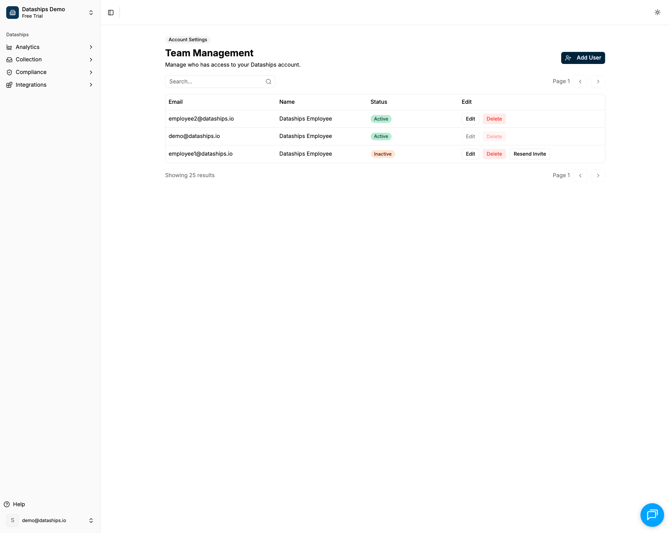
Open Team Management from your account menu in the bottom-left.
Reading the team list
The page is titled Team Management, with the subtitle "Manage who has access to your Dataships account." Everyone with access shows up in a list, with a column for each of these:
- Email — the email address each person uses to log in.
- Name — the team member's name.
- Status — a badge showing whether their access is active yet (more on this below).
If your team is long, use the Search box above the list to find someone quickly, and the arrows to page through the results.
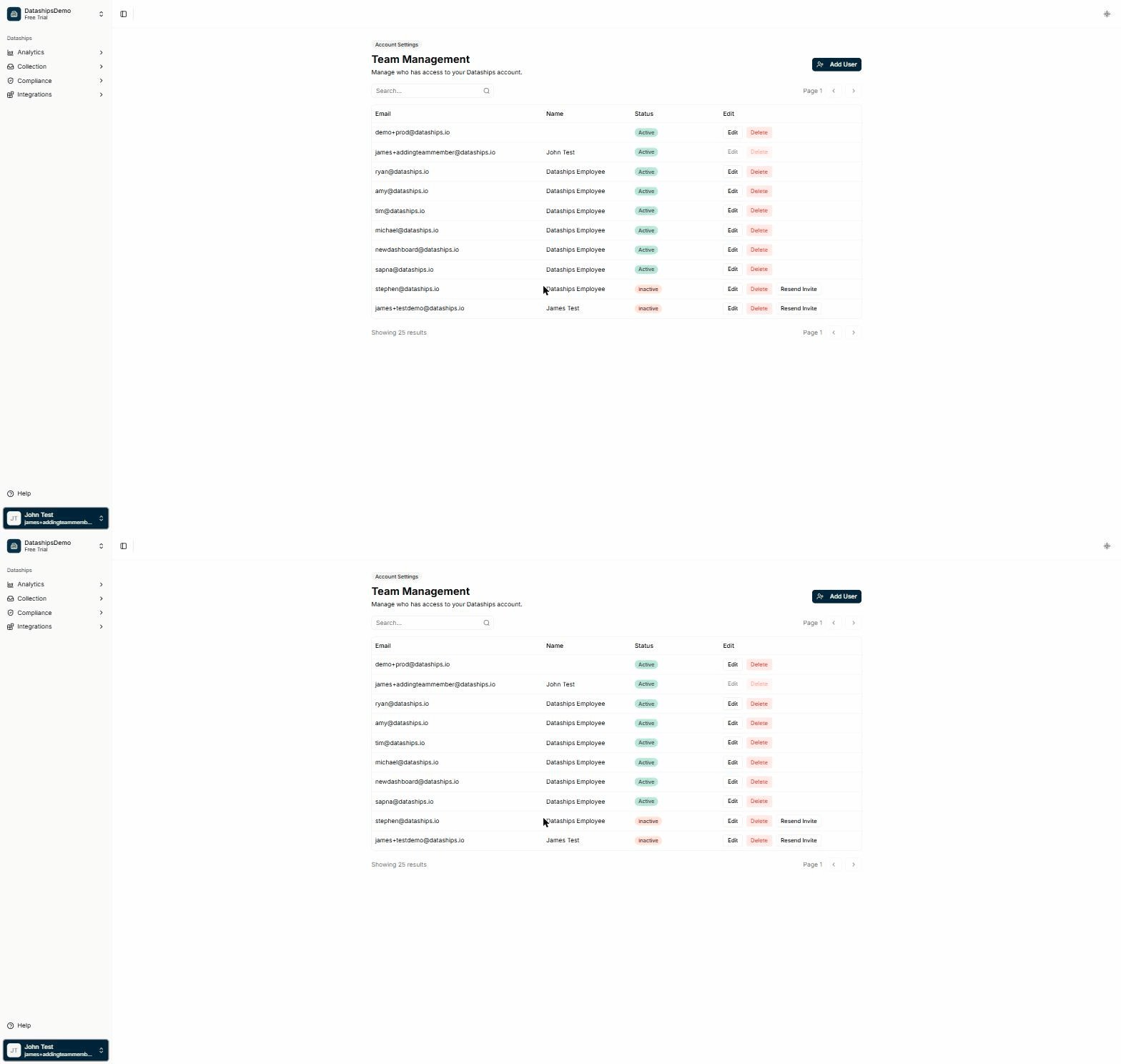
Your team list — each person's email, name, and status, with actions on the right.
Active vs. Inactive
- Active — this person has activated their access and can log in.
- Inactive — this person hasn't activated their access yet, for example a pending invite they haven't accepted.
What you can do from here
Each person in the list has a set of actions next to them:
- Edit — update a team member's name or email. See Editing or removing a team member.
- Delete — permanently remove someone's access. This is only available from the team list. See Editing or removing a team member.
- Resend Invite — send a fresh invite to anyone still showing as Inactive. See Editing or removing a team member.
To bring someone new on, use the Add User button in the top right. The full walkthrough is in Adding a team member.
A note on your own row
You'll see Edit, Delete, and Resend Invite next to your own name, but they're switched off for you — you can't edit, delete, or resend an invite to yourself. Those actions are always carried out by someone else on the team.
FAQ
Can I set different permission levels for each person?
No. This screen doesn't have any role or permission options — everyone you add gets the same standard account access. If you need something beyond that, get in touch with your account manager.
Where do I find Team Management?
It's in your account settings rather than the main sidebar. Click your name in the bottom-left corner of the screen and choose Team Management from the menu.
Someone I added still shows as Inactive — is that a problem?
Not at all. Inactive simply means they haven't activated their access yet. If they've lost the invite or it's been a while, you can send them a fresh one with Resend Invite — see Editing or removing a team member.